Payroll and invoicing

How a month runs

This page is for whoever prepares payroll and raises the invoices. It walks through a month in the order it happens, says who can change what at each point, and says what to do when a mistake is found.

Two timetables apply to the same records. Payroll runs on a pay period, the 24th of one month to the 23rd of the next. Invoicing runs on a calendar month, the 1st to the last day. For a timesheet or expense against a client, the first of the two to close is what stops it changing. Training, admin and other non-client work is on no invoice, so only the pay period applies to it.

The two are given different names on purpose. A pay period closes to staff on the 24th, and is finalised after that. A calendar month is closed for invoicing. Both phrases are written out in full on this page, because “closed” on its own would mean either of them.

Adding, amending and deleting are always a person's own entries. Nobody can change another person's timesheet, time off request or expense, at any point in the month.
24 July to 23 August

During the pay period

Staff add, amend and delete their own timesheets, time off requests and expenses on the Staff tab. The heading over each list names the period, and the line under it gives the first day of the period and the last day entries can be recorded. In the last week the countdown appears under “Add timesheet” and “Add expense”.

Approvers decide time off on the Approver page, with Approve and Reject. Whoever made the request can amend or delete it at any time; if they amend it, an approver has to decide it again, because the days have changed.

The Timesheets tab starts with the period’s shortlist. It calls out missing details and figures that differ from recent visits. Check a timesheet when it looks right, or send it back with a note when it needs a correction. A checked timesheet stays in the daily list, recedes behind the ones still to read, and names who checked it. Show more timesheets to append the rest of the period. In a long period, opening the rest also lets you search by person or client.

Expenses are recorded rather than requested, so nobody approves one; the Approver page lists them to be read. An expense counts from the moment it is saved. It is included in that pay period's payroll as it stands, and one against a client is included in that month's invoicing figures as well. There is no Approved or Needs attention state for an expense, and none is ever sent back. The person who recorded one can amend or delete it until the pay period closes on the 24th or payroll is finalised, whichever happens first. An expense against a client also becomes unchangeable when its calendar month is closed for invoicing. Its receipt photos are listed under it wherever the expense is; tap one to read the photo at full size.

An approver or an admin can download a draft from the Finance tab at any time. A draft is a copy of the figures to check. It saves nothing and changes nothing.

The period cannot be finalised while it is still open. The Finalise button says so, and gives the date it closes on.

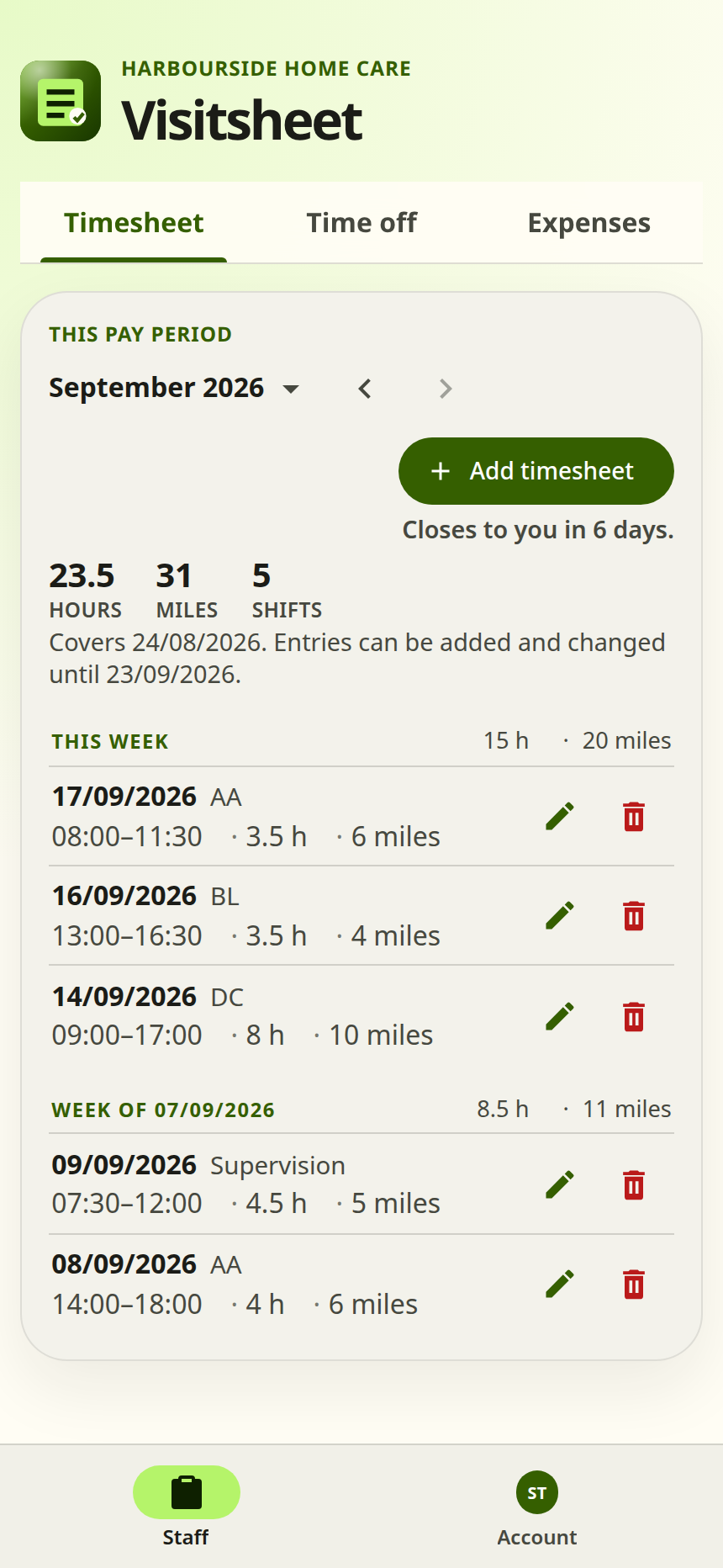
The Timesheet tab on a phone, headed This pay period. Each shift has a pencil to amend and a bin to delete beside it, and an Add timesheet button sits above the list.
Example screen

The pay period closes to staff

From the 24th

The August 2026 pay period covers 24 July to 23 August 2026 and closes to staff at the first moment of 24 August. 23 August is the last day a timesheet or an expense dated in it can be added, amended or deleted, and the whole of the 24th is closed. The dates are UK ones, so the change is at 00:00 London time. From then no timesheet or expense in the period can be added, amended or deleted by anyone: not the staff member, not an approver, not an admin. The only way to change one after that is for an approver to send the timesheet back for correction.

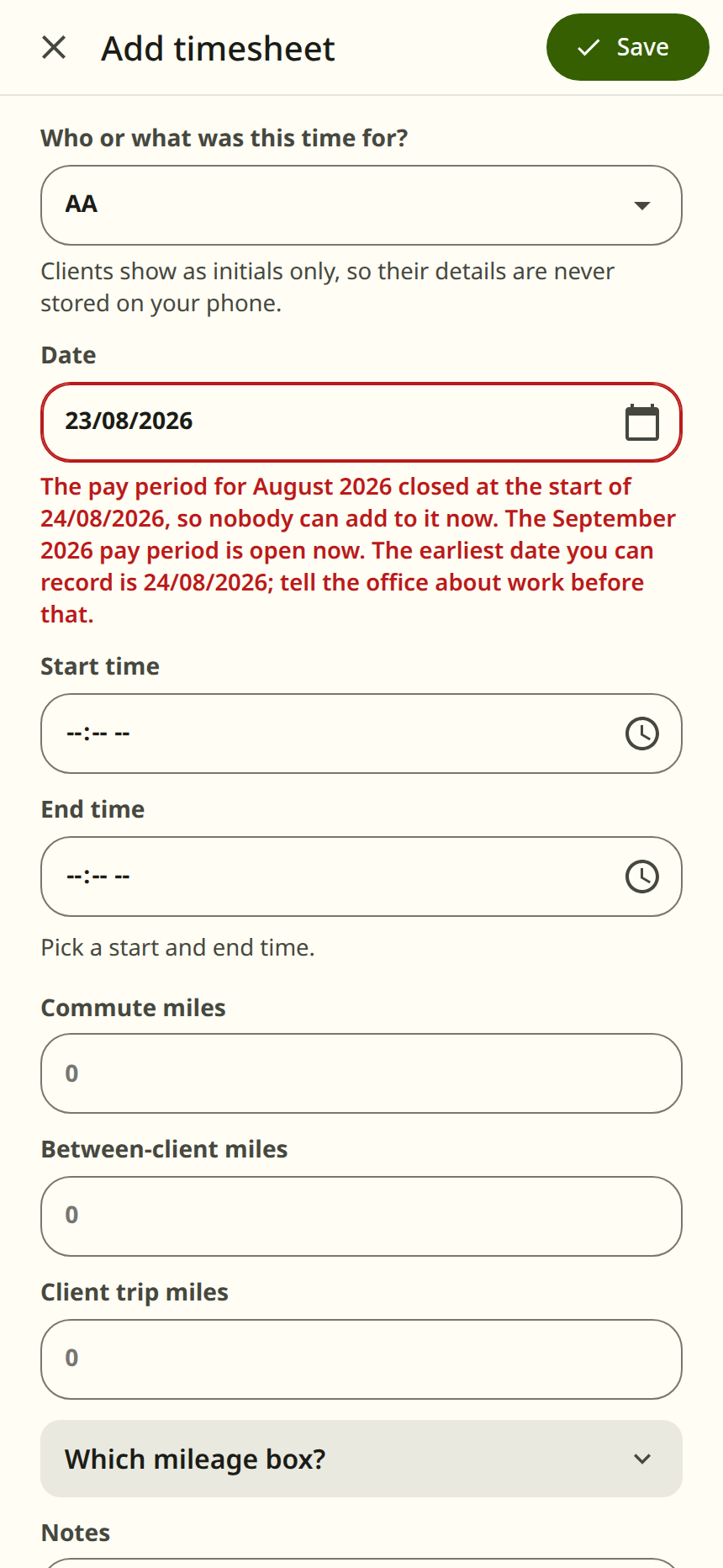
On the Timesheet and Expenses tabs the heading changes to “Closed pay period”, the Add button is no longer shown, and neither are Amend and Delete on the entries. Someone who puts a date in the period into one of those add forms is told, under the date field: “The pay period for August 2026 closed at the start of 24/08/2026. The September 2026 pay period is open now. The earliest date you can record is 24/08/2026.”

None of this applies to the Time off tab. The Request time off button is still there, every request still has Amend and Delete, and days already taken can still be recorded. Holiday pay is accrued separately, so a request records an absence and is not part of the payroll figures.

Approvers can still approve and reject time off, and send a timesheet back. This is the week payroll is prepared, and a request nobody has decided yet does not delay it: time off is not in the payroll figures at all.

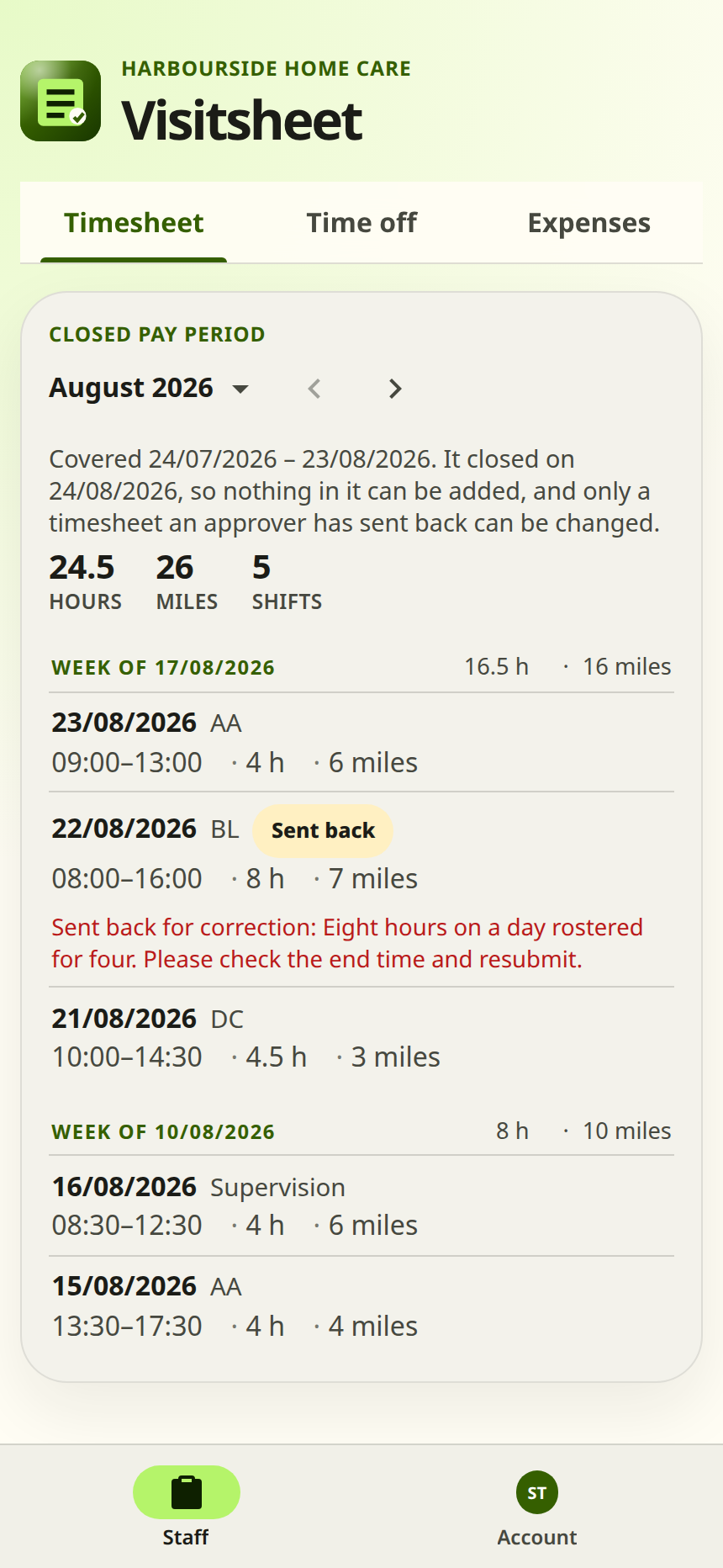
The Timesheet tab on a phone showing a closed pay period. The heading reads Closed pay period, the line under it says when it closed, and the shifts listed have no pencil or bin beside them.
Example screen

Correcting a figure after the 24th

Sending a timesheet back

A mistyped figure is usually noticed while payroll is prepared, once the pay period has closed to staff. An approver opens Approve, Timesheets, steps to the pay period, finds the entry and taps Send back, giving a reason.

The person who recorded it sees it marked “sent back” on their Staff tab, with the reason and Amend beside it, even though the period has closed to them. Once they have corrected it and saved, they cannot change it again.

A send back applies to one timesheet only. Its date has to stay inside the pay period it was recorded in, and expenses cannot be sent back at all. A time off request never needs one: the person who made it can amend it whenever they like.

Nothing has to be sent back before payroll: timesheets are paid as they were recorded. Undo send back cancels a send back nobody has acted on.

When the figures are right

Finalising the pay period

An approver or an admin finalises the period on the Finance tab, under Payroll, once no timesheet in it needs attention or is out for correction. Until then the Finalise button says what is outstanding. Time off is not part of that: it is not in the summary, the totals or either of the stored files.

A timesheet that has been sent back is left out of the figures until it is corrected. Its row is marked on the summary, and the period cannot be finalised until the correction has been made.

Finalising stores the two files that payroll is run from, a summary of one row per person and the detail behind it, and lists them under Finalised periods. From that moment nothing dated in the period can change at all, including approvals.

Download a draft and check it first. Finalising closes the period to approvers as well as staff, and only an administrator can undo it, which deletes the files stored here.

The Payroll tab of the Finance page. A panel above the tabs, headed 3 things need attention, names two months to close for invoicing and a pay period to finalise, each a link to the tab and period it is about. Under it the Pay period summary card is headed Closed pay period above the name July 2026, with a table giving the hours, miles and expenses for each of the two people who recorded anything in it, and under that Draft summary and Draft detail buttons and a Finalise July 2026 button.
Example screen

The administrator's undo

Reopening a finalised pay period

An administrator reopens a finalised period on the Payroll tab, beside the period's files, and is asked for a reason. The reason is kept with the record of who reopened it and when. Approvers cannot: finalising is the month's ordinary work, and undoing what was paid is the administrator's.

A reopen puts the period back to the day it closed to staff, not to the day before that. The 24th has still passed, so staff still cannot correct their own entries on their own. This is the part that catches people out: an approver has to send the timesheet back before the person who recorded it can change it.

A reopen makes Send back available again on that period's timesheets, and lets the period be finalised again. It changes nothing for time off, which finalising never affected. The stored payroll files are deleted, and finalising again writes new ones in their place.

The Payroll tab with a finalised period chosen. A panel above the tabs, headed 3 things need attention, names two months to close for invoicing and a pay period to finalise. Under it the Pay period summary card is headed Finalised pay period above the name August 2026, with the figures filed for it, a line saying the records behind it still add up to what was filed, and a line reading that August 2026 is final and when it was finalised. Download summary and Download detail buttons sit under those, and a Reopen August 2026 button under them, with the per-person figures as the records stand now at the foot of the card. A Finalised periods card below is headed Finalised periods with a Chart these periods button opposite the heading, and lists the periods already filed, one row each.
Example screen

Calendar months, not pay periods

Closing a month for invoicing

Clients are billed for the calendar month, so invoicing is closed separately, on the Invoicing tab of the Finance page. July 2026 covers 1 to 31 July and can be closed from 1 August, once no timesheet in it needs attention or is out for correction.

Closing a month stores a summary of one row per client and the detail behind it, under Closed months. Only visits to clients and expenses against them are counted; training, admin and the other activities are paid for rather than billed.

A close stops changes to exactly what it bills. A timesheet or an expense against a client, dated in the month, can no longer be changed, whatever its pay period is doing. A timesheet against training, admin or other non-client work, and an expense against one, are on no invoice, so only their pay period applies to them. Closing a month does not affect time off, which can still be requested, amended, deleted and decided.

An administrator reopens a closed month the same way, on the Invoicing tab, with a reason. The month's two stored files are deleted and it leaves Closed months, as reopening a pay period deletes the payroll files; closing it again writes new ones. Reopening the month changes nothing about the pay period: a timesheet in a pay period that has been finalised still cannot be changed until that period is reopened as well.

The Invoicing tab of the Finance page. A panel above the tabs, headed 3 things need attention, names two months to close for invoicing and a pay period to finalise, each a link to the tab and period it is about. Under it the Invoicing month card is headed Month ended above the name August 2026, with a table giving the visits, hours, miles and expenses for each client, and under that Draft summary and Draft detail buttons and a Close August 2026 button.
Example screen

Where the two overlap

One date, two months

A pay period spans two calendar months, so most dates fall in one pay period and one calendar month. Take a visit to a client dated 30 July 2026.

  • It is in the August 2026 pay period, 24 July to 23 August, which closes to staff on 24 August and is finalised after that.
  • It is in the July 2026 invoicing month, 1 to 31 July, which can be closed for invoicing from 1 August.

Whichever of the two closes first is what stops it changing. Closing July for invoicing on 1 August stops that timesheet changing three weeks before August payroll is finalised, and reopening the pay period would not change that, because it is the closed invoicing month that is stopping it.

Had the same date been booked against training rather than a client, closing July would not affect it. Only client work is billed, so a training or admin timesheet, and an expense against one, can still be changed until the August pay period closes.

By state and role

Who can do what

The first set of tables covers a single record, in the state its dates give it. Adding, amending and deleting always mean a person's own entries. Time off comes first because it is the exception: none of the states below applies to a time off request.

A time off request, in any state

Any date, in any pay period, finalised or not. Holiday pay is accrued separately, so a request records an absence and is not part of the payroll figures. It is often recorded after the days it covers.

A time off request, in any state: what each role can do to a time off request
ActionStaffApproverAdmin
AddCanCannotCannot
Amend or deleteCanCannotCannot
Approve or RejectCannotCanCan

A timesheet or an expense: the pay period is open

For the August 2026 pay period, 24 July to 23 August 2026.

A timesheet or an expense: the pay period is open: what each role can do to a record dated in it
ActionStaffApproverAdmin
AddCanCanCan
Amend or deleteCanCanCan
Send back a timesheetCannotCanCan

A timesheet or an expense: the period has closed to staff

From the first moment of 24 August 2026, until it is finalised.

A timesheet or an expense: the period has closed to staff: what each role can do to a record dated in it
ActionStaffApproverAdmin
AddCannotCannotCannot
Amend or deleteCannotCannotCannot
Send back a timesheetCannotCanCan

A timesheet has been sent back

From the send back until the person who recorded it amends it. That one timesheet only, and its date has to stay inside the pay period it was recorded in. A finalised pay period still refuses the change, and so does a month closed for invoicing where the visit was to a client.

A timesheet has been sent back: what each role can do to the timesheet that was sent back
ActionStaffApproverAdmin
Amend or delete the timesheetCanCannotCannot
Send back or Undo send backCannotCanCan

A timesheet or an expense: the period is finalised

From the moment it is finalised on the Finance tab.

A timesheet or an expense: the period is finalised: what each role can do to a record dated in it
ActionStaffApproverAdmin
AddCannotCannotCannot
Amend or deleteCannotCannotCannot
Send back a timesheetCannotCannotCannot

A timesheet or an expense: the period has been reopened

After a reopen. The same as the day it closed to staff.

A timesheet or an expense: the period has been reopened: what each role can do to a record dated in it
ActionStaffApproverAdmin
AddCannotCannotCannot
Amend or deleteCannotCannotCannot
Send back a timesheetCannotCanCan

A timesheet or an expense against a client: the month is closed for invoicing

Any date in that month, whatever its pay period is doing. Only client work is billed, so that is all the close stops: a timesheet or expense against non-client work follows its pay period as usual.

A timesheet or an expense against a client: the month is closed for invoicing: what each role can do to a timesheet or expense against a client, dated in that month
ActionStaffApproverAdmin
AddCannotCannotCannot
Amend or deleteCannotCannotCannot
Send back a timesheetCannotCannotCannot

What can be done to a pay period or a month

What can be done to a pay period or a calendar month, when, and by which role
ActStaffApproverAdmin
Download a draftAny time before the pay period is finalised, or before the month is closed for invoicing.CannotCanCan
Finalise the pay periodFrom the 24th, once no timesheet in the period needs attention or is out for correction. Time off does not delay it: it is not in the payroll figures.CannotCanCan
Close the month for invoicingFrom the 1st of the next month, once no timesheet in the month needs attention or is out for correction.CannotCanCan
ReopenAfter the pay period is finalised, or after the month is closed for invoicing. It asks for a reason, which is kept with the record of who reopened it.CannotCannotCan
  • Download a draft

    • StaffCannot
    • ApproverCan
    • AdminCan

    Any time before the pay period is finalised, or before the month is closed for invoicing.

  • Finalise the pay period

    • StaffCannot
    • ApproverCan
    • AdminCan

    From the 24th, once no timesheet in the period needs attention or is out for correction. Time off does not delay it: it is not in the payroll figures.

  • Close the month for invoicing

    • StaffCannot
    • ApproverCan
    • AdminCan

    From the 1st of the next month, once no timesheet in the month needs attention or is out for correction.

  • Reopen

    • StaffCannot
    • ApproverCannot
    • AdminCan

    After the pay period is finalised, or after the month is closed for invoicing. It asks for a reason, which is kept with the record of who reopened it.

A finalised period's two files stay on the Finance tab under Finalised periods, and a closed month's under Closed months. Approvers and admins can download them at any time.

The Finance page warns above its tabs in four cases. Each names the period and what to do.

  • A payroll draft was downloaded, and the period no longer adds up to it.
  • An invoicing draft was downloaded, and its month no longer adds up to it.
  • A pay period is not finalised, and the period after it has closed to staff.
  • A month is still open for invoicing, and the month after it is over.

What to do

When a mistake is found

  1. Before the 24th. Tell the person who recorded it, or send the timesheet back with a reason. They amend or delete it themselves on the Staff tab. Nobody else can do it for them.
  2. Between the 24th and finalising. An approver sends the timesheet back on Approve, Timesheets. The person who recorded it corrects it, and the period cannot be finalised until they have.
  3. After finalising. The period has to be reopened first, which an administrator does on the Finance tab with a reason, because the stored payroll files have to be replaced. Then the timesheet is sent back, corrected, and the period finalised again, which writes new files in place of the old ones.

An expense cannot be sent back, and cannot be amended once the 24th has passed, so a mistake in one found after that is a request to the developers with the confirmed figures. The correction is written as a change to the system, reviewed, and applied by a deploy.

A time off request needs none of that. The person who made it can amend or delete it at any point, in any period, so they correct it themselves.

A mistake in a client's work in a month already closed for invoicing needs that month reopened first, on the Invoicing tab. Where the invoice has gone out, the usual course is to bill the difference on the next one.

The Add timesheet form on a phone with a date in a closed pay period. The date field is marked in red and the line under it says the pay period for that month has closed and gives the earliest date that can be recorded.
Example screen

The other guide

How to use Visitsheet

The page for a new starter: recording the work they have done, asking for time off, and claiming back money they have spent.